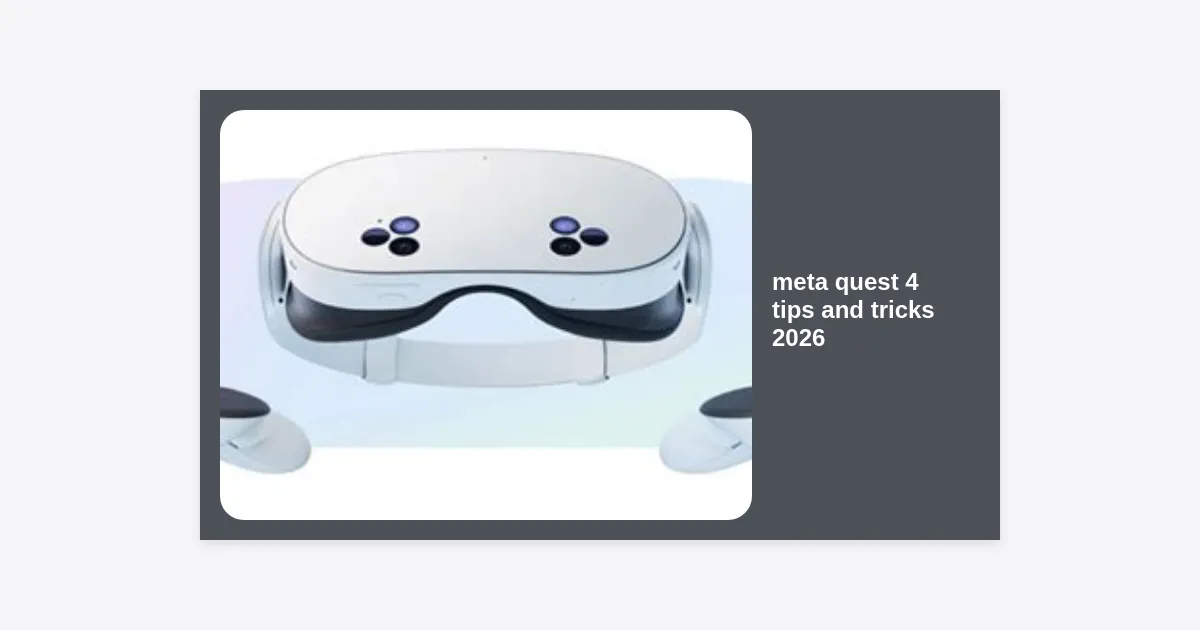
The landscape of spatial computing has shifted dramatically since the launch of the latest headset. If you have recently unboxed your device, you are likely looking for the most comprehensive meta quest 4 tips and tricks 2026 to elevate your immersion. Whether you are a seasoned VR veteran or a newcomer to the metaverse, mastering the intricacies of this hardware is essential for a seamless experience. In this guide, we will explore everything from hidden performance toggles to revolutionary mixed-reality shortcuts that will change how you play, work, and connect.
Table of Contents
- 1. Initial Setup and Comfort Optimization
- 2. Leveraging Built-in AI and Voice Commands
- 3. Maximizing Visual Fidelity and Refresh Rates
- 4. Mixed Reality (MR) and Passthrough Hacks
- 5. Battery Life Extension and Power Features
- 6. Using Quest 4 for Next-Gen Productivity
- 7. Hidden Developer Settings and Experimental Features
- 8. Conclusion and Future Outlook
1. Initial Setup and Comfort Optimization
Before diving into high-octane gaming, the physical fit of your headset determines the longevity of your sessions. The Meta Quest 4 features a redesigned facial interface that is more breathable than previous iterations, but it still requires fine-tuning.
Start by adjusting the IPD (Interpupillary Distance) slider. Unlike older models, the Quest 4 uses a continuous motorized adjustment. You can find the precise measurement by looking at the calibration chart in the “Display” settings menu. Aligning these lenses perfectly reduces eye strain and prevents the “god rays” effect that can blur your peripheral vision.
Pro Tip: Use the Quest’s “Fit Adjustment” tool found in the Quick Settings. It uses the internal eye-tracking cameras to tell you if the headset is tilted too far up or down on your face. This ensures that the “sweet spot” of the pancake lenses is always centered on your pupils.
2. Leveraging Built-in AI and Voice Commands
One of the standout meta quest 4 tips and tricks 2026 users should master is the deep integration of the Meta AI assistant. In 2026, voice control is no longer a gimmick—it is the fastest way to navigate the UI.
Instead of clicking through layers of menus, try saying, “Hey Meta, open my brightness settings” or “Hey Meta, record the last 30 seconds of gameplay.” The AI can now perform contextual actions within apps as well. For example, in a creative app, you can ask it to “Change the skybox to a sunset over Mars,” and it will generate the environment in real-time using generative AI.
“The integration of multimodal AI in the Quest 4 allows for a truly hands-free experience, bridging the gap between physical intent and digital execution.” — VR Tech Review 2026
3. Maximizing Visual Fidelity and Refresh Rates
To truly appreciate the 4K-per-eye resolution, you need to know how to push the hardware. While the headset defaults to a balanced mode, you can unlock higher performance levels manually.
Navigate to Settings > System > Display and ensure that the 144Hz refresh rate is enabled. While this consumes more battery, it significantly reduces motion sickness in fast-paced games. Additionally, enable “Super-Resolution Scaling.” This feature uses the headset’s dedicated AI chip to upscale textures in real-time, making older Quest 2 and 3 titles look like native Quest 4 builds.
- Dynamic Foveated Rendering: Always keep this ON. It uses eye-tracking to render only the spot you are looking at in full resolution, saving processing power.
- Brightness Levels: For horror games, drop the brightness to 60% to enhance black levels and immersion.
- Contrast Sensitivity: Adjust this in the Accessibility menu to make text pop against bright backgrounds.
4. Mixed Reality (MR) and Passthrough Hacks
Mixed reality is the core of the Quest 4 experience. The high-fidelity color passthrough allows you to see your physical room with near-perfect clarity. To make the most of this, utilize the “Scene Scripting” feature.
You can now map your entire house and save “MR Zones.” For example, your kitchen can be designated as a “Recipe Zone” where virtual timers and floating screens appear automatically when you enter. In the living room, you can set up a “Home Theater” zone that dimming virtual lights when you sit on your physical couch.
Example: Use the “Augmented Windows” feature to pin a YouTube tutorial to your physical wall while you work on a real-life hobby like painting or electronics. The Quest 4’s depth sensor ensures the virtual window stays locked in place even if you walk away and return later.
5. Battery Life Extension and Power Features
With the increased power of the 2026 hardware, battery management is a common concern. A primary meta quest 4 tips and tricks 2026 strategy involves using the “Battery Saver 2.0” mode.
This mode is more intelligent than previous versions. It doesn’t just lower brightness; it intelligently throttles background processes and lowers the refresh rate specifically for static apps like the Browser or Netflix. If you are watching a movie, you can get up to 4 hours of use on a single charge compared to the usual 2 hours for gaming.
- Turn off “Keep-Alive WiFi” when the headset is in sleep mode to prevent drain.
- Use the official Meta Elite Strap with Battery for a balanced weight distribution and double the runtime.
- Disable haptic feedback on the controllers if you are just navigating menus or watching videos.
6. Using Quest 4 for Next-Gen Productivity
In 2026, the Meta Quest 4 has replaced the multi-monitor setup for many professionals. Horizon Workrooms has evolved to allow for five simultaneous high-resolution virtual monitors when connected to your PC or Mac via Air Link 3.0.
To optimize your workflow, enable “Keyboard Tracking.” This feature uses the cameras to recognize your physical keyboard and overlay a digital version of it in VR. You no longer have to blind-type or peek through the nose gap. Additionally, the new “Spatial Dictation” allows you to dictate emails with 99% accuracy, including punctuation and formatting, thanks to the localized AI processing.
7. Hidden Developer Settings and Experimental Features
If you want to go beyond the standard UI, enabling Developer Mode is a must. This allows you to sideload apps and access the “Experimental Features” tab, which often hosts the most exciting meta quest 4 tips and tricks 2026 enthusiasts love.
In the Experimental menu, look for “External Camera Support.” This allows you to plug a high-quality webcam into the Quest’s USB-C port for professional-grade mixed-reality streaming. You can also find “Neural Interface Beta,” which experiments with using subtle eye movements and facial expressions to trigger menu actions without moving your hands.
Warning: Experimental features can be unstable. If your headset begins to lag, toggle these off one by one to find the culprit.
8. Conclusion and Future Outlook
The Meta Quest 4 represents the pinnacle of consumer VR/MR technology in 2026. By implementing these meta quest 4 tips and tricks 2026, you aren’t just using a gadget; you are mastering a new medium of human-computer interaction. From the AI-driven voice commands to the intricate Mixed Reality scene mapping, the possibilities are virtually limitless.
Keep your software updated, as Meta frequently rolls out “v-series” updates that add entire new features without requiring new hardware. The most important tip is to keep exploring. The spatial web is expanding every day, and your Quest 4 is the best window into that future. Happy exploring!